Connected Devices & Bluetooth
Why Your BP Monitor Fails to Connect - And How to Fix It
Troubleshoot common blood pressure monitor connectivity issues. From Bluetooth pairing failures to data sync problems, learn practical solutions that improve device reliability and user experience.
ZiviPro Team5 min read
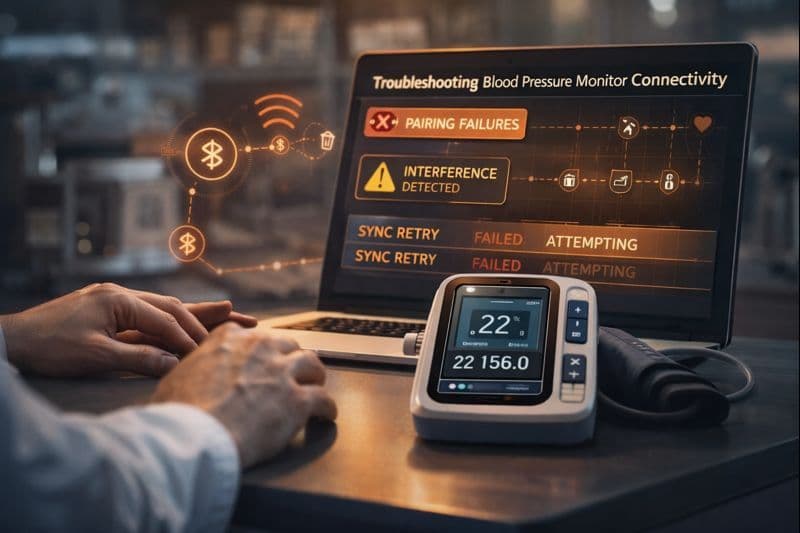
This is the most common issue: your phone simply cannot "see" the monitor, or the pairing process hangs indefinitely.
- The "Forget" Protocol (The Magic Fix): If you have paired the device before, your phone might be holding onto a "stale" connection key.
- Go to your phone’s Settings > Bluetooth.
- Find your BP monitor in the list (e.g., "Omron BP7600", "Withings BPM").
- Tap the "i" or gear icon and select Forget This Device or Unpair.
- Toggle Bluetooth OFF for 5 seconds, then back ON.
- Restart the pairing process in the app (not the Bluetooth menu).
- Android Location Permissions:
- The "Why": On many Android versions, Bluetooth Low Energy (BLE) scanning requires Location Services to be enabled. This is a Google requirement, not the app trying to track you.
- The Fix: Ensure "Location" is turned on in your quick settings panel. Also, check Settings > Apps > [Your BP App] > Permissions and ensure "Location" is set to "Allowed."
2. The "Silent" Sync (Data Not Transferring)
The device is connected, but your latest reading isn't showing up in the app.
- Force the "Handshake":
- Most monitors only sync when the screen is active. After a reading, don't immediately remove the cuff. Press the Start/Stop or Transfer button once to wake the screen, then pull down to refresh on your app's dashboard.
- Check Background Restrictions:
- Modern phones aggressively kill background apps to save battery. If your app can't run in the background, it can't auto-sync.
- Fix: Go to Settings > Battery > App Launch/Optimization and set your health app to "Unrestricted" or "Do Not Optimize."
3. Interference & "Ghost" Connections
If the connection drops constantly or shows "Error 4" (common on Omron/iHealth devices).
- The "Noisy Room" Factor: Microwave ovens, Wi-Fi routers (2.4 GHz), and other Bluetooth devices (like smartwatches or headphones) can crowd the signal. Move at least 5 feet away from your Wi-Fi router when syncing.
- The Multi-Device Trap:
- Did you pair your monitor to your iPad and your iPhone? Bluetooth devices often struggle to know which "master" to talk to.
- Fix: Turn off Bluetooth on all other devices nearby except the one you are currently using.
4. The "Nuclear Option" (Factory Reset)
If all else fails, reset the monitor itself. This clears the internal Bluetooth cache but usually keeps your stored readings.
- Omron Monitors: typically require pressing the "Bluetooth" or "Clock" button for 10+ seconds until a symbol flashes or the screen clears. (Consult your manual as this varies by model).
- Withings BPM: Press and hold the button for 6–10 seconds to enter the menu, cycle to "Reset," and hold again to confirm.
- General Rule: Removing the batteries for a full 60 seconds is a simple way to force a hardware reboot on standard monitors.
BP MonitorTroubleshootingConnectivityUser Experience